> For the complete documentation index, see [llms.txt](https://docs.birdie.so/birdie-docs/llms.txt). Markdown versions of documentation pages are available by appending `.md` to page URLs; this page is available as [Markdown](https://docs.birdie.so/birdie-docs/helpdesk/pylon/flows/triggers.md).
# Triggers
Adding Birdie to Your Pylon Triggers
Several support teams use **Birdie** in their **Pylon triggers** to give customers a helpful alternative when **Pylon AI can’t automatically resolve a request**.\
This setup ensures that:
* Customers can easily record their screen to show the issue in detail.
* Agents get full visibility into what’s happening at the moment the ticket is handed off to a human.
Here’s how to set it up 👇
{% stepper %}
{% step %}
#### Create a Trigger in Pylon
Open **Pylon** and go to **Settings → Triggers**.
Choose the condition that defines **when** the message should be sent (for example, when Pylon cannot find an answer).
Under the **THEN** section, select **“Send a message.”**
{% endstep %}
{% step %}
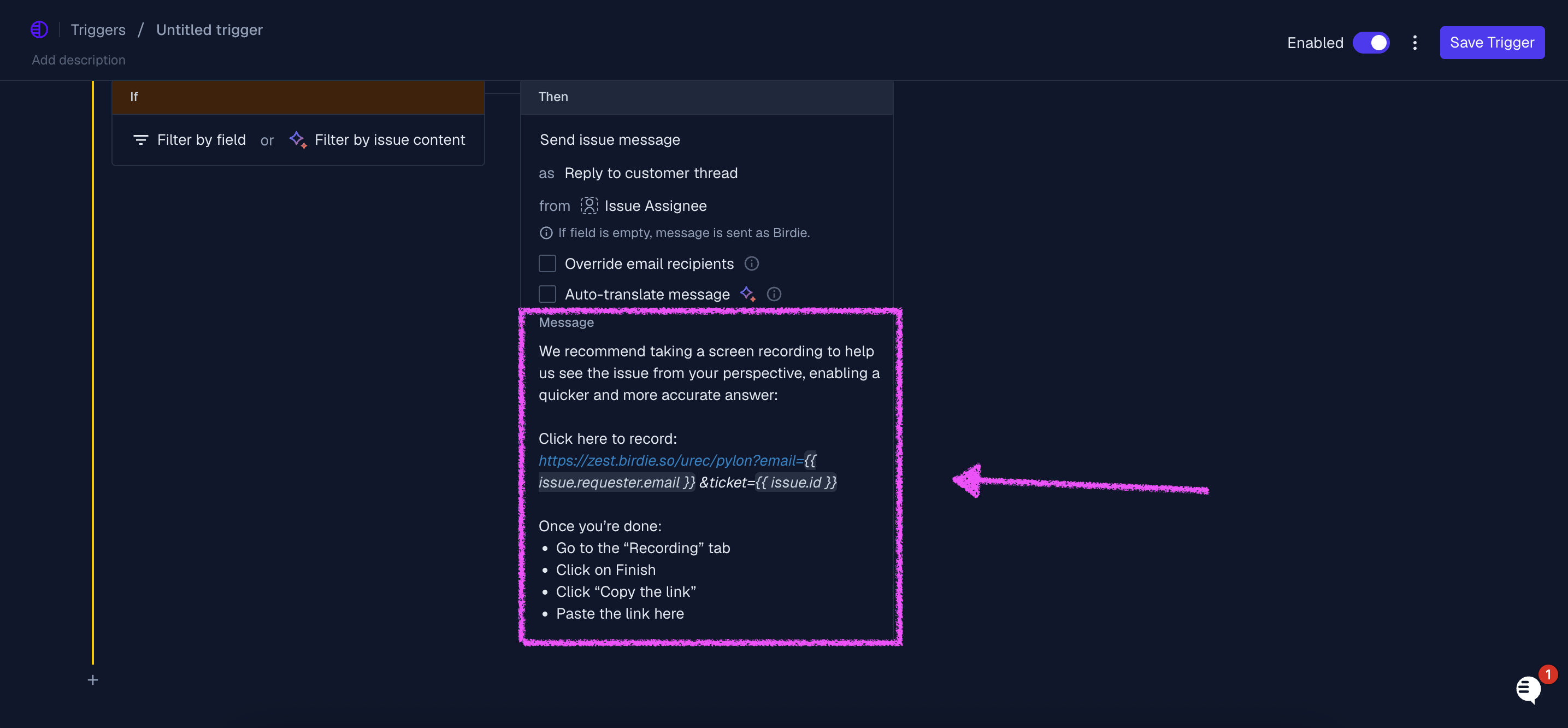
#### Add Birdie’s Screen Recording Message
*We recommend taking a screen recording to help us see the issue from your perspective, enabling a quicker and more accurate answer:*\
\ Click here to record: \[ADD REQUEST LINK HERE]
*Once you’re done:*
* *Go to the “Recording” tab*
* *Click on Finish*
* *Click “Copy the link”*
* *Paste the link here*
{% endstep %}
{% step %}
#### **Get Your Birdie Request Link**
Go to **Birdie → Settings → Integrations** to Copy your **Request Link**.
{% endstep %}
{% step %}
#### Add variables to the Request Link
To ensure each recording is correctly linked to the customer and their ticket, append the **email** and **ticket number** parameters to the URL like this:
`https://your-subdomain.birdie.so/urec/pylon``?email=``name@company.com``&ticket=``987654321`\
This ensures every video recording is automatically associated with the correct user and ticket in your system.
{% endstep %}
{% endstepper %}