> For the complete documentation index, see [llms.txt](https://docs.birdie.so/birdie-docs/llms.txt). Markdown versions of documentation pages are available by appending `.md` to page URLs; this page is available as [Markdown](https://docs.birdie.so/birdie-docs/helpdesk/pylon/installation.md).
# Installation
Birdie x Pylon
### Install Birdie in Pylon
#### 1. Get your Pylon API Token
* First, go into your Pylon workspace Settings > Integrations & dev > API Tokens.
* Create a new token with the **Admin** role, and give it a recognizable name (for example, *"Birdie Token"*).
* Copy the token and store it somewhere safe - you’ll need it in the next step.
#### 2. Setup Birdie
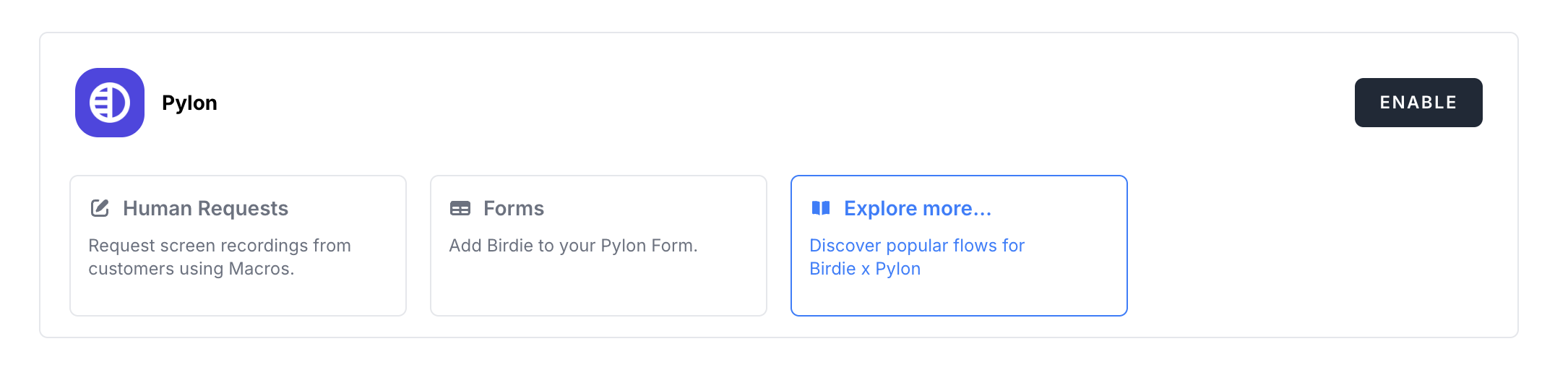
Go to your [**Birdie workspace settings**](https://app.birdie.so/settings/helpdesk), open the **Helpdesk Integrations** section, find **the "Pylon" integration**, and click **Enable**.
A window will open prompting you to paste the API token you just created. Paste it into the **API Token** field and click the **Test** button.

If the token is valid, you will see three pieces of information required to complete the Pylon integration in the next step.
Make sure to click **Save** before leaving.
#### 3. Setup Pylon Integration
Go back to your **Pylon workspace** → **Settings** → **Integrations & Dev** → **Integrations**.
Scroll down to **Custom Iframe (by Pylon)** and click on it.
On the Iframe Integration screen, click **+ Add Iframe**, then fill out the form with the following information:
* Display location: choose the value **Issue Sidebar**
* Title: Birdie Screen Recording
* Description (optional): *leave empty*
* Icon URL (optional):
* URL: copy the URL directly from the Pylon Setup window in Birdie (see previous step).
* Height (in pixels, optional): *leave empty*
Make sure to click **Save**.
You're all set! The **Birdie Screen Recording** panel should now appear in your Issue sidebar.