# Agent-Initiated Requests (Messaging – In-App & Web)
{% hint style="info" %}
Birdie integrates with **Salesforce Messaging for In-App and Web.** Birdie does not support the deprecated **Salesforce Chat (formerly Live Agent)**.
{% endhint %}
Before you start, make sure **Birdie is already** [**installed on your Salesforce Case page**](https://docs.birdie.so/birdie-docs/helpdesk/salesforce-service-cloud/installation).
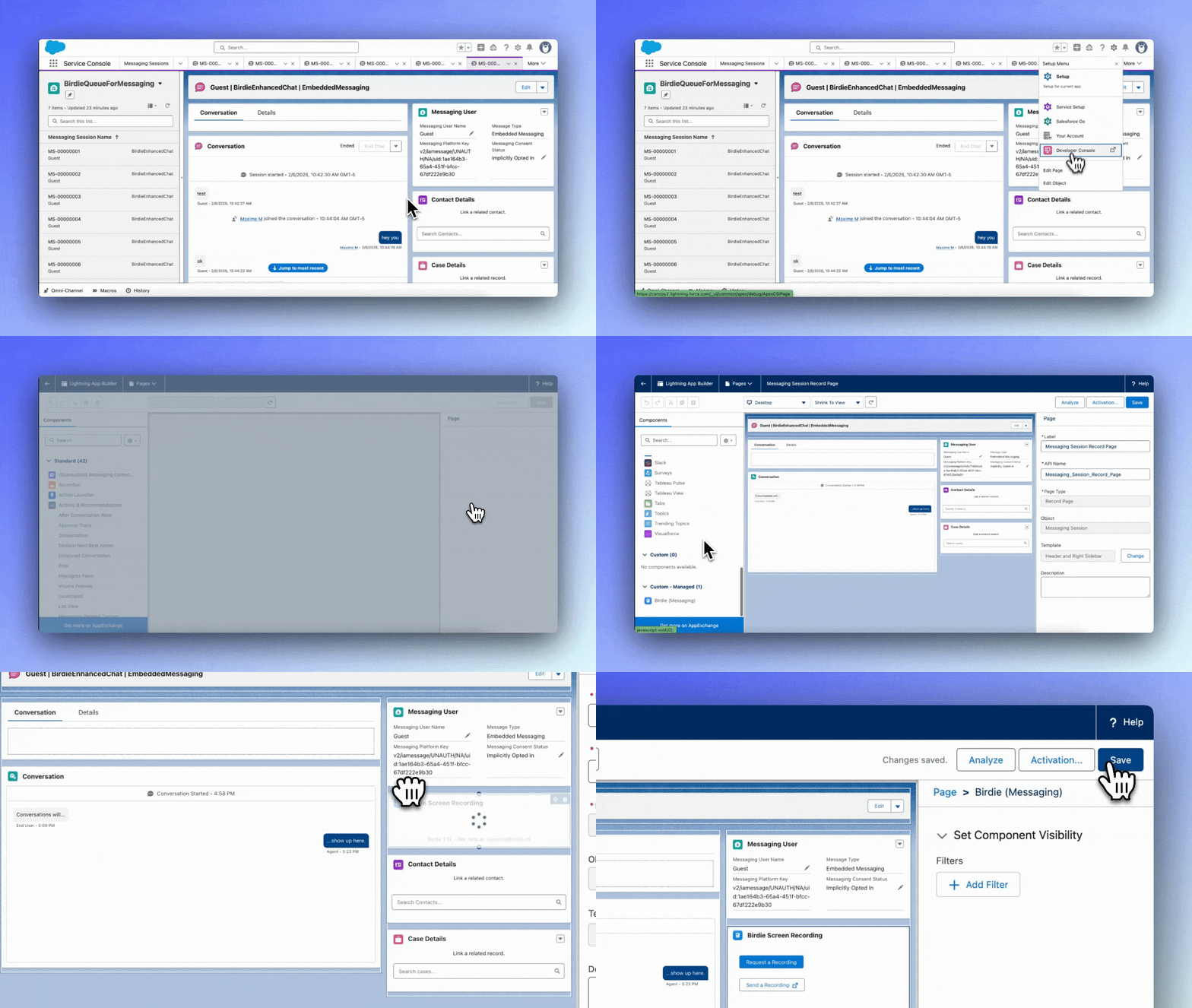
### Step 1: Add Birdie to the Messaging Session Record Page
1. In Salesforce, open a **Messaging Session** record.
2. Click **Setup → Edit Page**.
3. In the Lightning App Builder, **drag & drop the Birdie Lightning Web Component (LWC)** onto the page.
4. Click **Save** (and **Activate** if Salesforce prompts you).
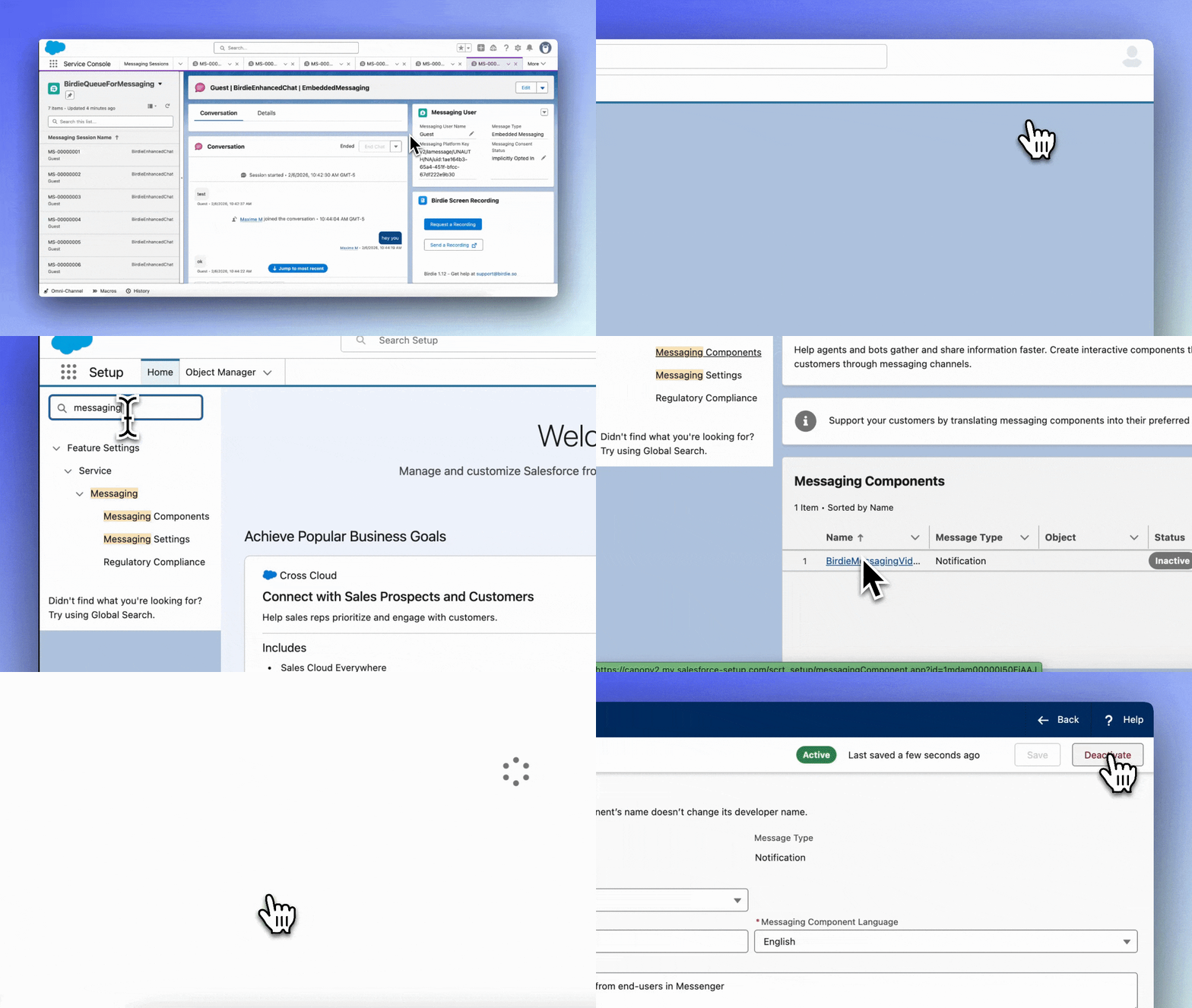
### Step 2: Activate Birdie’s Messaging Component
1. Go to **Setup → Messaging Components**.
2. Click **BirdieMessagingVideoPost**.
3. Set it to **Active**.
{% hint style="info" %}
As of today recording links used from the Messaging Session Record Page are not included [in Analytics](https://docs.birdie.so/birdie-docs/helpdesk/salesforce-service-cloud/analytics)
{% endhint %}