> For the complete documentation index, see [llms.txt](https://docs.birdie.so/birdie-docs/llms.txt). Markdown versions of documentation pages are available by appending `.md` to page URLs; this page is available as [Markdown](https://docs.birdie.so/birdie-docs/request-screen-recordings/transcript-captions-and-ai-summary.md).
# Transcript, Captions & AI Summary
Get an instant overview of your recordings.
## Transcript and Captions
You can enable **Transcripts and Captions** in your Birdie workspace under\
[**Settings → Incoming Recordings**](https://app.birdie.so/settings)**.**
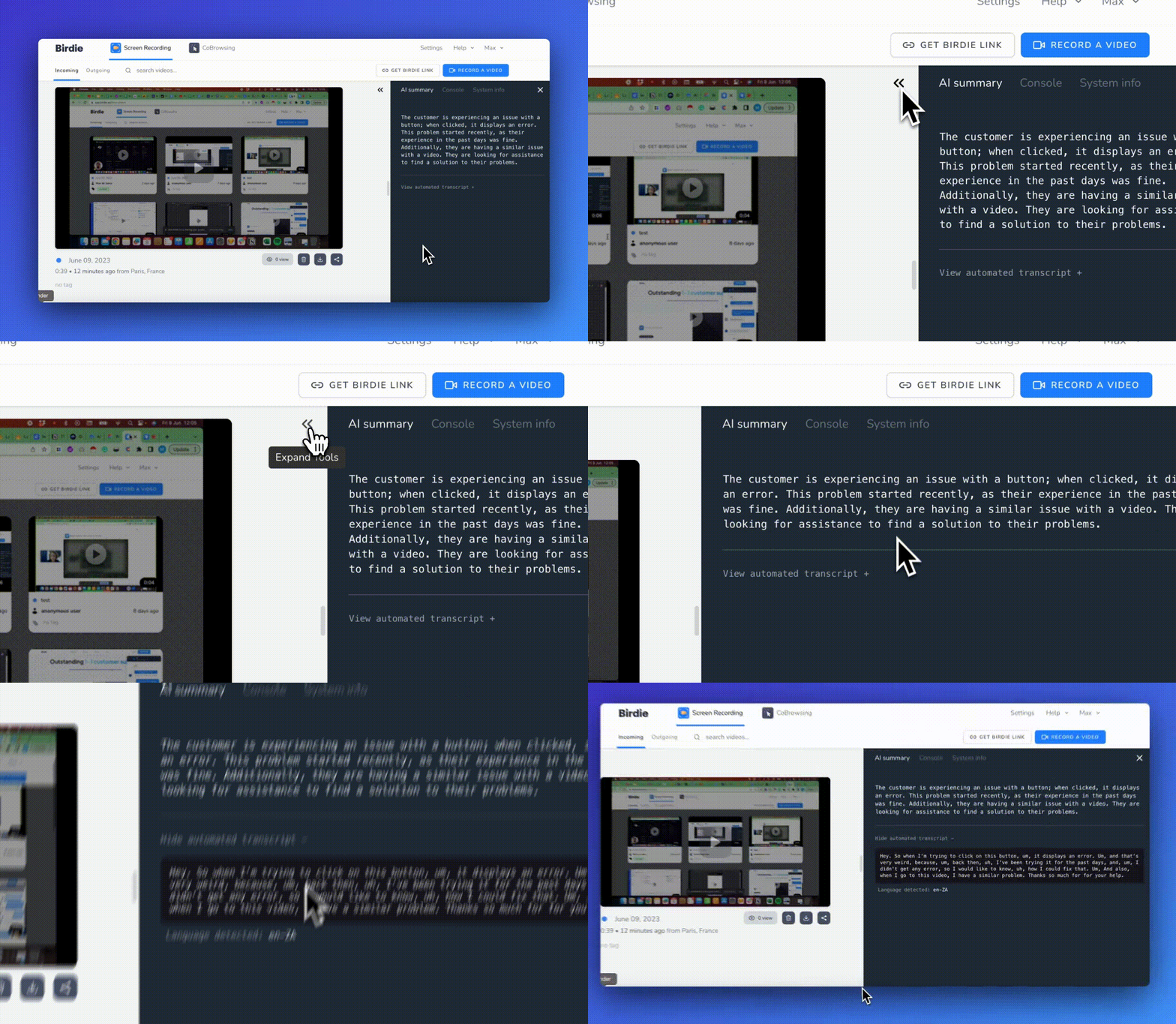
Transcriptions are automatically generated in the **language detected** from the recording’s audio.\
For example, if the speaker talks in Spanish, both the transcript and captions will be provided in Spanish.
This feature helps teams review conversations, extract key details, and improve accessibility for all users.
## AI summary
Birdie automatically generates an **AI-powered summary** for each incoming recording, based on its audio track.
The summary is provided in **English**.
To enable this feature, go to [**Settings → Incoming Recordings**](https://app.birdie.so/settings)**.**
You can choose between:
* Using **Birdie’s built-in OpenAI key**, or
* **Providing your own OpenAI API key** for additional control and flexibility.